Table of Contents
customizations
code enhancements on mountains.social
These code changes have been tested without issues on Mastodon versions 4.3+
Increase maximum number of characters for a post
The maximum number of characters for a post on a Mastodon instance is 500. This can be quite limiting, so the number of characters have been increased to 2362.
Please note that a URL in a post only counts for 23 characters, regardless of the length of the URL. This means as well, that no URL shorteners are needed (which often have the downside of being privacy invasive).
1. Implement the enhancement
As user mastodon:
cd ~/live

cp -p app/validators/status_length_validator.rb app/validators/status_length_validator.rb.orig

sed -i 's/MAX_CHARS = 500/MAX_CHARS = 2362/g' app/validators/status_length_validator.rb

RAILS_ENV=production bundle exec rails assets:precompile && echo "pass" || echo "fail"
As user root:
service mastodon-web reloadAs the code now has been changed, it is wise to revert the code changes (see below) before performing Mastodon upgrades. The upgrade will therefore run without issues. After the upgrade, the enhancement needs to be implemented again.
2. Revert the enhancement
As user mastodon:
cd ~/live

cp -p app/validators/status_length_validator.rb.orig app/validators/status_length_validator.rb

RAILS_ENV=production bundle exec rails assets:precompile && echo "pass" || echo "fail"
As user root:
service mastodon-web reloadhow-to's
walk-throughs and descriptions
Migration Pixelfed account
There has been a long existing bug when trying to migrate a Pixelfed account from one instance to another. When someone tried to migrate their account, the source account broke. This core Fediverse feature was communicated to be fixed starting with Pixelfed server version v0.12.7. This version (or higher) needs to be implemented on the instance where you want to migration from. Of course, ideally this version should also be implemented on the target instance.
In the below description the migration is documented from source account account_migratontest@pixelfed.social (yes, indeed with a typo) to target account pixelfedtester2026@mountains.photos.
TL:DR, yes, the migration works now, but with some things to keep in mind. Read along in case you want to know what.
1. Export data
The migration starts at the source account. Before you start the migration, you really need to export data as much as possible (spoiler: even when you can't import much of it later). Go to your Profile → Export.
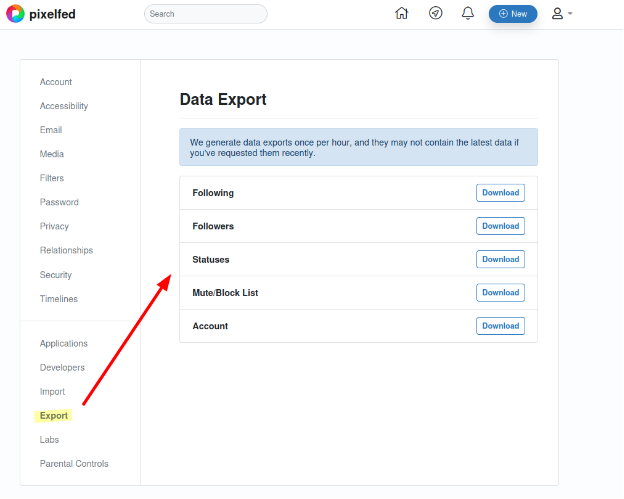
2. Create account alias
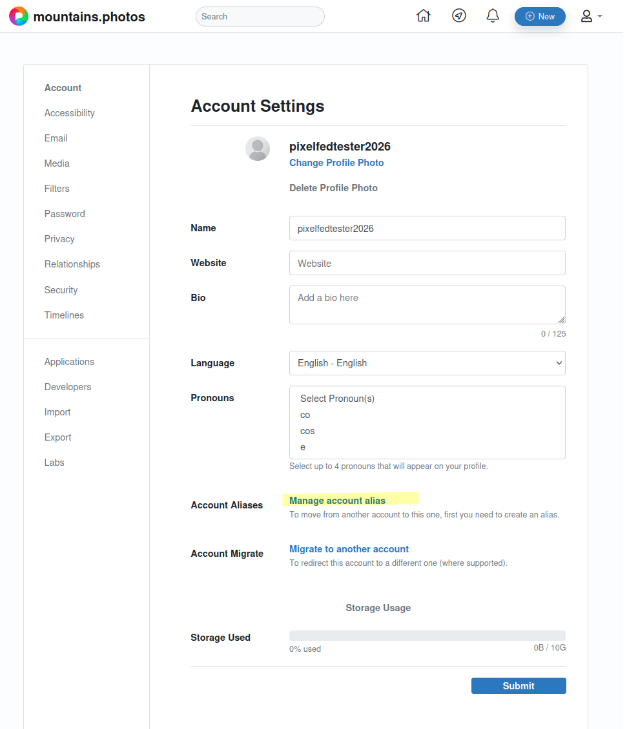
When this is done, change to your target account. There you need start by configuring an alias. You will find that option directly under Profile.
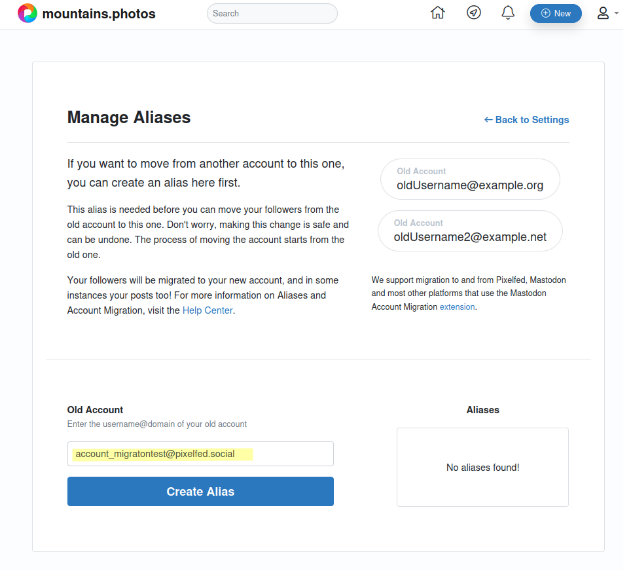
Fill in your source account username and choose Create Alias.
You should get the confirmation that the alias has been created.
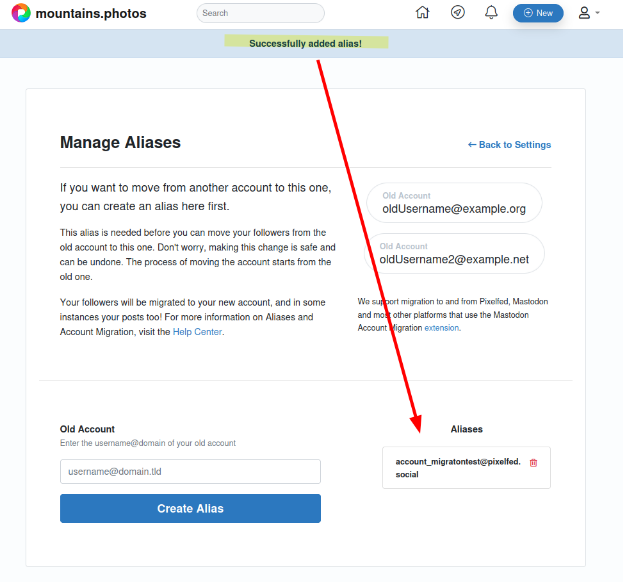
3. Trigger actual migration
Back in the source account, we can now trigger the migration (directly under Profile).
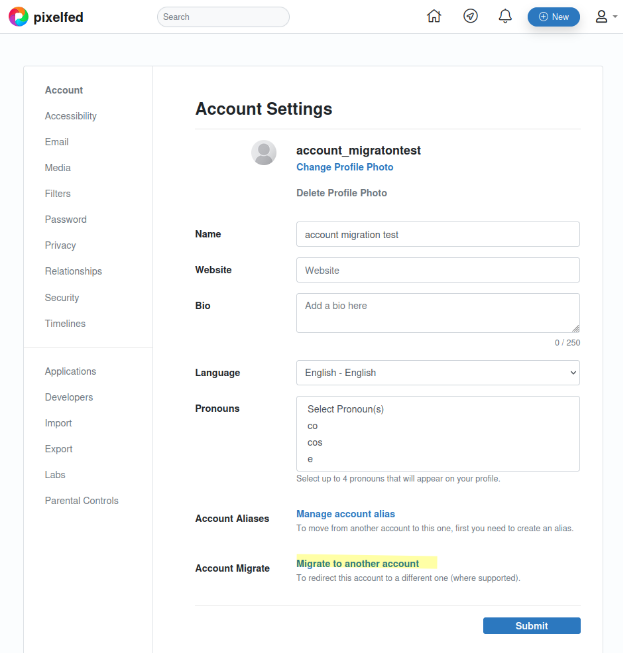
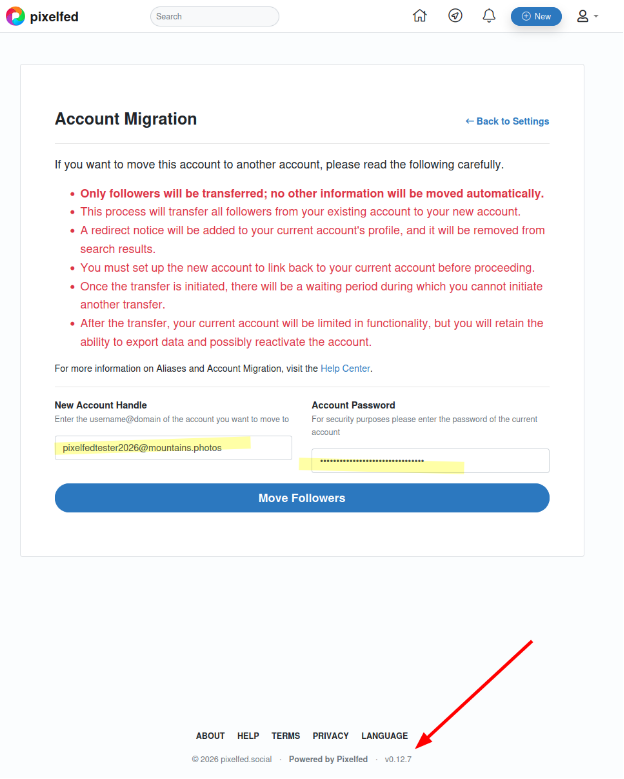
You will now be presented with all the implications that the migration will have. First of all however:
Validate that the Pixelfed version is at least v0.12.7. Do NOT proceed when this is not the case, it will break your account.
The official Pixelfed documentation says, that the migration of posts is possible since version v0.11.9, but as you can see below, only your Followers are migrated. Nothing more, nothing less.
With those items addressed and you still want to migrate, fill in your new account handle, your password and choose Move Followers.
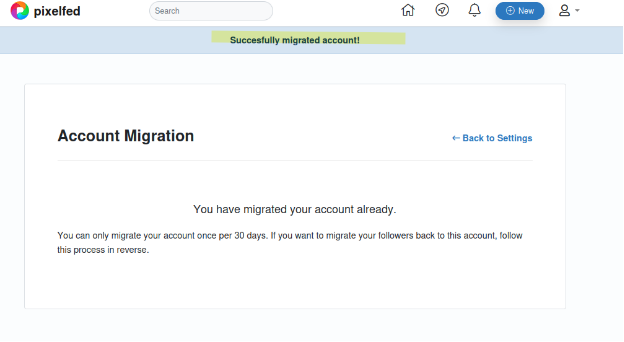
The next screen might be a bit confusing. "You migrated already??". On the top you should find "Successfully migrated account" (yep, another typo, this time not from my side). This indicated that the migration is triggered, not executed just yet.
4. Migration of followers
As mentioned, the migration of followers is the only thing that get done automaticall during the migration. The migration could take some time (the official documentation mentions that only after 24 hours you could say that an issue during migration occurred). I did not have to wait that long at all, maybe 30 minutes.
Mastodon followers should get a notification like this.
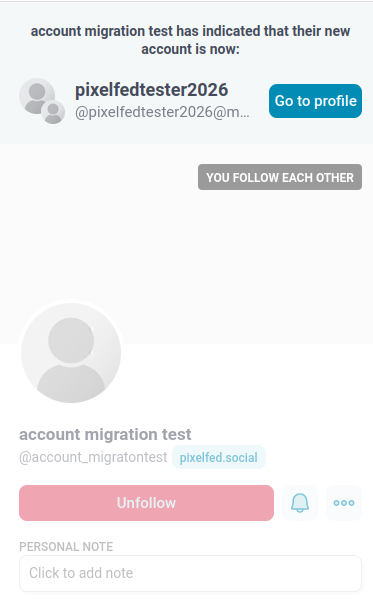
In Pixelfed your followers should find these notifications here.
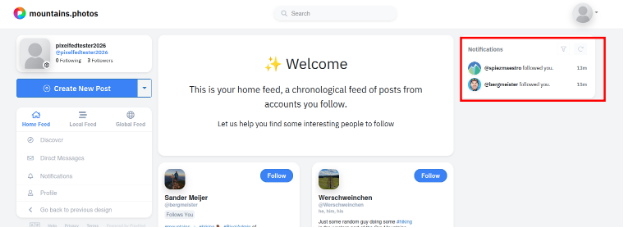
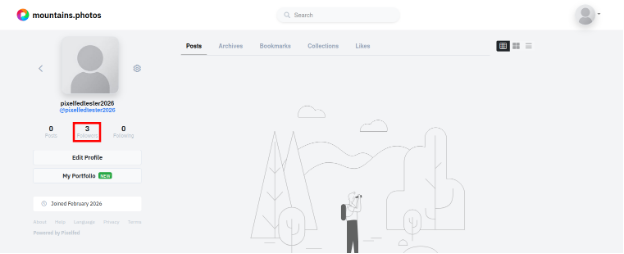
I had set up my source account to have 3 followers, but only 2 notifications came. When I just looked under Followers in my target account, I did see that I had indeed retained my 3 followers. So in case you do not get a notification for every account, just check your follower list.
5. Migration post-processing
With the account now migrated, you might want to do some post-processing. As mentioned in the beginning, posts will not be migrated. It is also not possible to import them via the export file you created in step 1. Probably you want to keep following the people you were following on your old account. You will need to do that manually. The export file with your followings can help you with that.
Open the file (in your browser for example).
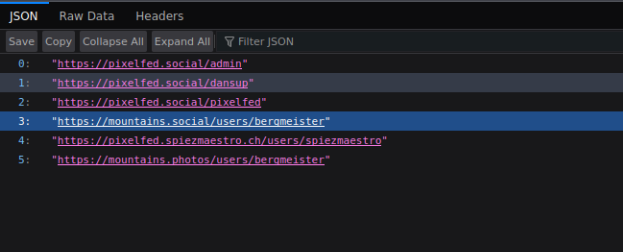
Now right click a link, copy the link and paste that in the search bar of Pixelfed.
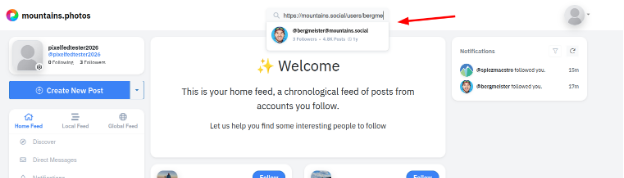
You will get to the profile page of that account, where you can start following it again. Repeat for all account (which with a lot of followings might take some time).
6. Enjoy your new account
With the migration done, enjoy your new instance!